
Published June 17, 2026 · Updated August 18, 2026 · Facts last verified August 18, 2026
Sometimes the message you most need help with is exactly the one you don't want sitting in your sidebar forever: an angry email to a client, a complaint to a vendor, a payment dispute, a refund reply, or a draft that comes out sounding far worse than you actually meant it. You want a second opinion before you hit send; you just don't want a paper trail of half-written emotional drafts.
Good news: yes, you can use ChatGPT without saving chat history. The main tool is Temporary Chat, and there's a separate Data Controls setting for turning off model training. This guide explains what each of those actually does and where the limits are — Temporary Chat is more private, but it isn't zero retention or total anonymity. Then, for people who are tired of flipping the same toggles every single time, it looks at Secret Chat: a private AI app that keeps these protections on by default, so you don't have to remember to.
Can You Use ChatGPT Without Saving Chat History?
Yes. ChatGPT includes a feature called Temporary Chat, designed specifically for conversations you don't want kept. According to OpenAI, chats you start in Temporary Chat:
- Don't appear in your chat history.
- Don't use or create memories for personalization, though OpenAI documents that limited prior-conversation information may still be consulted for safety in rare, high-risk situations, and any Custom Instructions you have set still apply.
- Aren't used to train OpenAI's models.
That covers the most common worry — "I don't want this draft saved in my history." But there's one limit worth stating up front, because it's the part most blog posts skip: OpenAI says Temporary Chats may still be kept for up to 30 days for safety purposes before being removed. So Temporary Chat is better for privacy, but it isn't the same as zero retention or total anonymity. Treat it as "not saved to my history," not "never seen."
How to Use Temporary Chat in ChatGPT
This is easier than people expect. Temporary Chat lives right on the new-chat screen — look in the top-right corner for the pill-shaped Temporary button and click it to toggle the mode on:
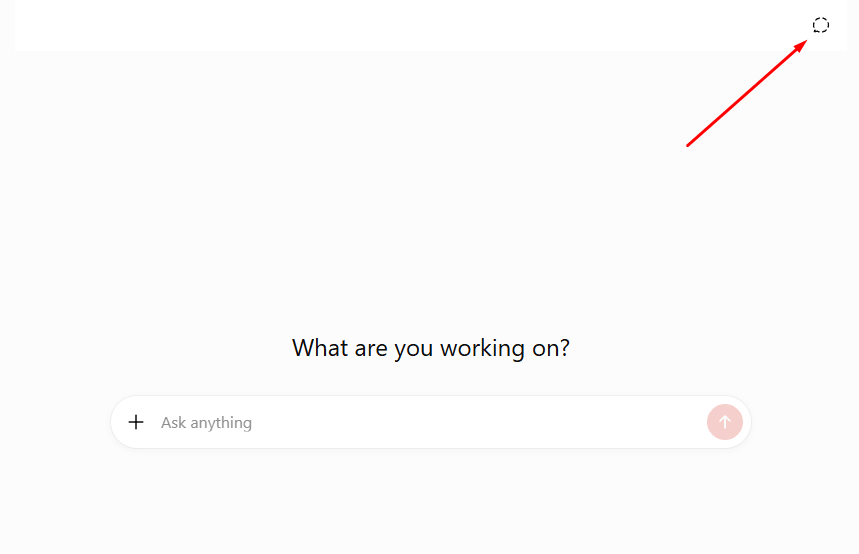
The full habit, start to finish:
- Open ChatGPT and start a new chat.
- Click the Temporary button in the top-right corner to turn the mode on.
- Confirm the temporary / private indicator is visible before you start typing.
- Paste only the minimum context you need, not the whole email thread.
- When you're done, don't copy sensitive data back into your normal chats.
One thing to remember: you usually have to switch it on again for each new conversation; it isn't a permanent account-wide mode.
Two Things That Survive All of This
A guide about not leaving traces has to name the two that stay behind, because both defeat the obvious cleanup routine.
Files you upload in a normal chat are saved separately. Eligible uploads go to your Library, and OpenAI states that deleting the chat does not delete them; they sit in your account until you delete them there. So if the thing you wanted gone was a document rather than a sentence, deleting the conversation isn't enough. Files uploaded inside a Temporary Chat are the exception: those aren't saved to your account or Library at all, which is a genuine point in Temporary Chat's favour.
Memory is a separate store from history. Since OpenAI's June 2026 rebuild, memory is a summary synthesised in the background from your chats, files and connected apps, managed under Settings → Personalization → Memory. Deleting a conversation doesn't remove what was learned from it, and turning memory off doesn't delete the chats it was built from, so re-enabling it can rebuild much of what you cleared. Removing something properly means clearing it from every source it appears in.
Turn Off Model Training in Data Controls
Temporary Chat is one lever. The other is the training setting, which lives somewhere else entirely. According to OpenAI's consumer privacy information, ChatGPT's Data Controls let you choose whether your conversations help improve OpenAI's models, and you can turn the setting off so that future conversations don't contribute to training.
In ChatGPT settings:
- Open Settings → Data Controls.
- Turn off the option related to improving the model for everyone.
- This affects future conversations going forward.
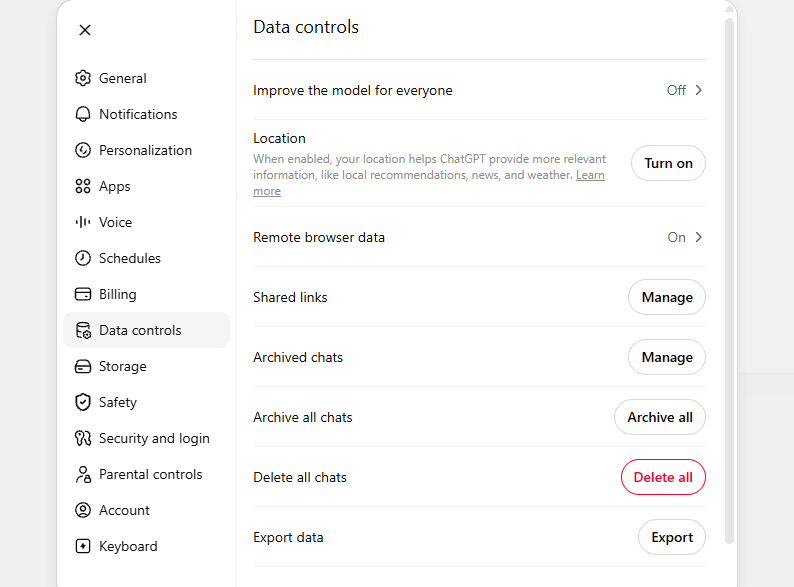
Two things this is not: it isn't the same as deleting your past chats (those still sit in your history), and it isn't the same as Temporary Chat. Put simply — Temporary Chat controls whether a conversation appears in your history and memory; Data Controls affect whether your conversations can be used to help improve models. You can use one, the other, or both.
Temporary Chat vs Turning Off Training vs Deleting Chats
These three get mixed up constantly, so here they're side by side, plus an always-on alternative for people who don't want to manage any of them by hand.
| Option | What it helps with | What it doesn't solve | Best for |
|---|---|---|---|
| Temporary Chat | Keeps a chat out of history and training, and out of memory for personalization. Its uploads aren't saved to Library. | The prompt is still processed; a copy may be kept up to 30 days. Custom Instructions still apply and limited prior context may be consulted for safety. You must switch it on every time. | Quick one-off private conversations. |
| Turning off model improvement / training | Stops future conversations from being used to improve models. | Doesn't delete existing chats or hide them from your history. | People who keep normal history but opt out of training. |
| Deleting old chats | Removes conversations from your visible history. | Backend retention timing can vary; it doesn't change training settings. | Cleaning up after the fact. |
| Avoiding sensitive details | Reduces risk no matter which setting you use. | Requires you to remember to redact every time. | Anyone pasting work content. |
| Using Secret Chat | Keeps all of the above on by default; no history, training opted out, responses deleted at the provider where supported. | It's a separate product, not an official ChatGPT setting, and the chosen model still processes your prompt. | People who want privacy without managing settings every time. |
| Asking a council instead of one model | Sends one question to several models from different companies at once and has a referee mark, claim by claim, where they disagree, so a shaky answer shows itself instead of sounding confident. | It widens where your text travels: every model on the panel plus the referee receives it, anonymously but verbatim. Agreement is evidence, not proof. | Drafts and answers you can't afford to get wrong. |
One important note: Secret Chat is not a ChatGPT setting. It's a separate private AI app you can use instead of (or alongside) ChatGPT.
What Not to Paste Into ChatGPT
Whatever your settings, some things simply shouldn't go into a general AI chat. Avoid pasting:
- Passwords and API keys.
- Full customer records or databases.
- Private medical or legal documents.
- Complete contracts with names and addresses.
- Internal company secrets.
- Personal arguments with identifying details.
- Screenshots that may carry hidden personal data or metadata.
OpenAI's file storage FAQ notes that files uploaded in Temporary Chats aren't saved to your account or Library (which is helpful), but that still isn't a reason to hand over your most sensitive documents. A better habit is to share less in the first place:
- Remove names.
- Replace company and client names with placeholders.
- Paste only the part the model actually needs, not the whole document.
- Ask about the specific point you need instead of uploading the whole file.
For example, instead of:
"John Smith from ACME Ltd refuses to pay invoice #123…"
Use:
"A client refuses to pay an invoice after delivery. Help me write a firm but professional reply."
You get the same quality of help with far less exposure.
The Tiring Part: You Have to Do This Every Time
Here's the catch with the ChatGPT approach. Temporary Chat isn't a permanent mode; you have to switch it on again for each new conversation. The training toggle lives in a different menu. Redacting names is on you, every single time. None of it's hard, but it's a checklist you have to run before every sensitive chat, and the day you forget is exactly the day it matters.
If you only need privacy occasionally, that's fine. If "check this privately" is a regular part of your work, manually rebuilding the same privacy setup over and over gets old fast.
A Simpler Alternative: Secret Chat Is Private by Default
Secret Chat takes a different approach. Instead of asking you to remember settings, it keeps the privacy-friendly behavior on from the start, so the protections you would manually assemble in ChatGPT are simply the default. In that sense it gives you the same benefit as Temporary Chat (conversations aren't kept around), without the part where you have to enable it each time.
According to its own description, Secret Chat is built so that:
- Responses are deleted automatically. Where the model provider supports it, the gateway sends an explicit request to delete your prompt and response after each session: the same "do not keep this" outcome Temporary Chat aims for, applied by default.
- Nothing is trained on your chats. Models are accessed under business API terms with training opted out, so your prompts aren't set up to improve a model.
- Chats live in your browser, not a cloud history. Conversations are stored locally (IndexedDB for text, OPFS for files) rather than in a server-side account archive.
- Your identity is anonymized. Registration collects an email only; no names, phone numbers, or billing identity tied to your queries, and sessions aren't stitched into a behavioral profile.
- You get a PDF privacy report. Each session can produce a PDF Session Privacy Report showing how the data was handled and whether the deletion request was made — evidence you can keep, instead of a promise on a page.
It also includes access to multiple AI models in one place, so you aren't tied to a single provider's account. The point is comfort: you set up your privacy perimeter once — or rather, you don't set it up at all, because it's already the default — instead of rebuilding it before every chat.
Being honest about the limits: this isn't magic total privacy. The chosen AI provider still has to process your prompt to answer it, and "deleted where supported" depends on the provider. But for everyday private use, having history off, training off, identity anonymized, and deletion requested automatically (with a report to prove it) is a meaningfully lower-effort way to stay private than running the ChatGPT checklist by hand each time.
The AI Council: Several Models on One Question, With a Referee
Having many models available is one thing; asking them the same question at the same time is another. The AI Council sends one question to several models from different companies in parallel and reveals each answer the moment that model finishes, so you start reading the fastest one while the rest are still writing. A cheap referee model then extracts the factual claims from all of them and lays out a disagreement table: which model asserts each claim, which contradicts it, and which never mentioned it — followed by a short synthesis of what at least two models agreed on and a "verify before acting" list.
There are three sizes. A Duet seats two models, a Trio three, and a Quartet the whole bench — ChatGPT, Claude, Gemini and Grok. The Duet and Trio let you choose which families sit at the table; the Quartet runs all four and has no picker. A Duet is free within the daily free quota, on a lighter pair that answers from memory with no live web search; credits buy the branded panels and the larger sizes. When a question turns on current or checkable facts, the whole panel answers with live web search attached — decided once for the panel rather than per model, so its members stay comparable. You can paste in a draft or an answer you already have and let the panel check it, or switch an existing chat over to a council, in which case the panel reads the whole conversation. Each answer's cost is shown next to the model that wrote it, with the referee on its own line.
Two limits belong here rather than in the small print. Agreement between models is evidence, not proof — they share training data and can be wrong together, so the reliable signal is disagreement, which tells you exactly which claim to go and check. And a council widens where your text travels: it reaches every model on the panel plus the referee. Each of those requests is anonymous (no profile, no account identity attached), but anonymization protects who you are, not what you type, so the redaction advice further up this page applies with more force to a council, not less. The finished check is stored only on your device, and the Session Privacy Report lists every model that took part.
Final Recommendation
If you stick with ChatGPT, the built-in tools genuinely work; they just need you to drive them:
- ChatGPT Temporary Chat keeps a one-off conversation out of your history, but you have to turn it on every time.
- Turning off model improvement in Data Controls stops future chats being used for training.
- Removing sensitive details still matters whatever your settings — redact before you paste.
If you would rather not manage all of that by hand, Secret Chat keeps history off, training opted out, identity anonymized, and deletion requested automatically: the same protections, on by default, with a PDF report as evidence. Keep the honesty intact either way: no tool makes you fully anonymous, and the model still processes your prompt. The difference is how much work staying private takes.
And if your real task isn't "chatting" but checking a tense work message before you send it (an angry email, a payment dispute, an awkward reply) that has its own playbook. See how to check and rewrite a risky work message before you send it.
Frequently Asked Questions
- Can I use ChatGPT without saving chat history?
Yes. Temporary Chat is designed for conversations that shouldn't appear in your history, and according to OpenAI it isn't used to train models and neither uses nor creates memories for personalization, though limited prior context may still be consulted for safety. Just remember a copy may be retained up to 30 days for safety.
- Does Temporary Chat train the model?
No. OpenAI says Temporary Chats aren't used to train its models. That's separate from the Data Controls training setting, which governs your normal conversations.
- Does Temporary Chat mean nothing is stored?
No. It keeps chats out of your history, memory, and training, but the prompt still has to be processed to answer you, and OpenAI says Temporary Chats may be kept up to 30 days for safety. Better for privacy, not zero retention.
- How do I turn off model training in ChatGPT?
Open Settings → Data Controls and turn off the setting related to improving the model for everyone. This affects future conversations and is different from deleting past chats or using Temporary Chat.
- Is there an alternative so I don't have to set this up every time?
Yes. Secret Chat keeps the privacy-friendly behavior on by default — chats stored locally instead of a cloud history, training opted out, identity anonymized, and an automatic deletion request sent to the provider where supported, with a PDF Session Privacy Report as evidence. It's a separate private AI app, not a ChatGPT setting, and the chosen model still processes your prompt.
- Can I get a second opinion on a draft without pasting it into several chatbots myself?
Yes. Secret Chat's AI Council sends one question (or one draft) to several models from different companies at once, shows each answer as that model finishes, and then has a referee build a table of which model asserts each claim, which contradicts it, and which never mentioned it. A two-model Duet is free within the daily quota, on a lighter pair with no live web search; credits buy the ChatGPT/Claude/Gemini/Grok panels and the larger Trio and Quartet. Two caveats: agreement between models is evidence, not proof (the useful signal is where they disagree), and a council sends your text to every model on the panel plus the referee, anonymously but verbatim, so redact identifying details first.
- Is Secret Chat the same as Temporary Chat?
Not identical, but similar in effect: both aim to avoid keeping your conversation. Temporary Chat does this inside ChatGPT and must be switched on each time; Secret Chat applies the equivalent protections by default and adds anonymized sessions and PDF privacy reports. Neither makes the provider's processing of your prompt disappear.